
GUI Testing: UI Test Cases & Examples
 Editorial Team
⚡ Smart Summary
GUI Testing validates every visible element of an application — buttons, menus, icons, text boxes, and layouts — so screens behave and appear exactly as specified across browsers, devices, and screen resolutions before real users ever touch them.

To understand GUI Testing, let us first understand what a GUI is.
What is GUI?
There are two types of interfaces for a computer application. Command Line Interface is where you type text and computer responds to that command. GUI stands for Graphical User Interface where you interact with the computer using images rather than text.
Following are the GUI elements which can be used for interaction between the user and application:

GUI Testing is a validation of the above elements.
What is GUI Testing?
GUI Testing is a software testing type that checks the Graphical User Interface of the Software. The purpose of Graphical User Interface (GUI) Testing is to ensure the functionalities of software application work as per specifications by checking screens and controls like menus, buttons, icons, etc.
GUI is what the user sees. Visit guru99.com and the homepage that appears is the GUI of the site. The source code stays hidden; only the interface is visible. GUI testing therefore focuses on design structure and on whether images render correctly.

In the screenshot above, GUI testing starts by confirming that every image is completely visible in different browsers. The remaining checks on that same page are:
- The links are available, and each button works when it is clicked.
- Resizing the screen never causes images or text to shrink, crop or overlap.
- Nothing in the layout collapses when the browser window is made narrower.
💡 Tip: Run the same page at 1920×1080, 1366×768 and 375×812 before logging any defect. Many “broken layout” reports are simply untested breakpoints.
Need of GUI Testing
Now the basic concept of GUI testing is clear. The few questions that will strike in your mind will be:
- Why do GUI testing?
- Is it really needed?
- Is testing the functionality and logic of an application not enough on its own, and why spend extra time on the interface?
To get the answer, think as a user and not as a tester. A user has no knowledge of how the application was built. It is the interface that decides whether that user continues with the application or abandons it.
A normal user first observes the design and the look of the application, and how easy it is to understand the interface. If a user is not comfortable with the interface, or finds the application complex to understand, that user will never come back. GUI is therefore a matter for concern, and proper testing should be carried out to make sure the interface is free of bugs.
Types of GUI Testing
Knowing why the interface matters is only half the picture. GUI testing is a family of five types, and each answers a different question about the same screen.
- Functional GUI testing: Confirms that every control does what it promises. Closely related to functional testing, it asks whether a button submits, a dropdown filters and a field accepts valid input.
- Usability testing: Measures how easily a real person completes a task. Usability testing looks at navigation depth, readability and whether error messages actually help.
- Compatibility testing: Repeats the same screens across browsers, operating systems and device sizes. Cross browser testing catches rendering faults that appear only in one engine.
- Accessibility testing: Verifies keyboard navigation, screen-reader labels and colour contrast against WCAG. Accessibility testing is now a compliance requirement in many markets, not an optional extra.
- Visual and performance testing: Compares rendered screenshots against a baseline and measures how quickly the interface paints and responds, overlapping with performance testing.
Most teams run all five but weight them differently: a public website leans on compatibility and accessibility, an internal dashboard on functional checks.
What do you Check in GUI Testing?
The following checklist will ensure detailed GUI Testing in Software Testing.
- Check all the GUI elements for size, position, width, length, and acceptance of characters or numbers. For instance, you must be able to provide inputs to the input fields.
- Check you can execute the intended functionality of the application using the GUI
- Check Error Messages are displayed correctly
- Check for Clear demarcation of different sections on screen
- Check Font used in an application is readable
- Check the alignment of the text is proper
- Check the Color of the font and warning messages is aesthetically pleasing
- Check that the images have good clarity
- Check that the images are properly aligned
- Check the positioning of GUI elements for different screen resolution.
GUI Testing Techniques
Once the checklist exists, the next decision is how to execute it. GUI Testing Techniques can be categorized into three parts:
Manual Based Testing
Under this approach, graphical screens are checked manually by testers in conformance with the requirements stated in the business requirements document.

Record and Replay
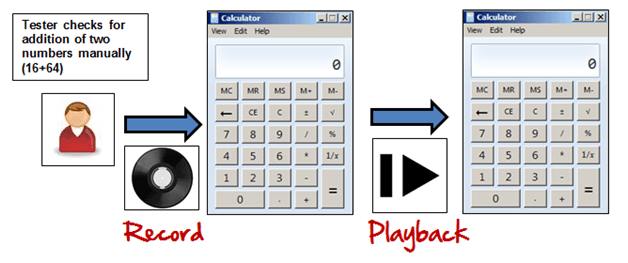
GUI testing can be done using automation tools. This is done in 2 parts. During Record, test steps are captured by the automation tool. During playback, the recorded test steps are executed on the Application Under Test. Example of such tools – QTP.
Model Based Testing
A model is a graphical description of a system’s behavior. It helps us to understand and predict the system behavior. Models help in a generation of efficient test cases using the system requirements. The diagram below shows how a model drives test generation:
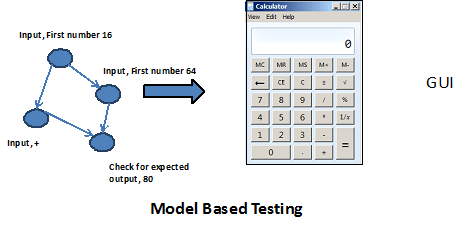
The following needs to be considered for this model based testing:
- Build the model
- Determine Inputs for the model
- Calculate the expected output for the model
- Run the tests
- Compare the actual output with the expected output
- A decision on further action on the model
Some of the modeling techniques from which test cases can be derived:
- Charts – Depicts the state of a system and checks the state after some input.
- Decision Tables – Tables used to determine results for each input applied
Model based testing is an evolving technique for generating test cases from the requirements. Its main advantage, compared to above two methods, is that it can determine undesirable states that your GUI can attain.
Manual vs Automated GUI Testing
Two of those three techniques are manual and one is automated, which raises the practical question of where each belongs. Manual testing puts a human in front of the screen, so it catches awkward workflows, clumsy wording and animations that feel wrong — judgements no script can make.
Automated testing replays the same interactions thousands of times without fatigue, which makes it the right answer for stable regression paths and for repeating one suite across many browsers. The trade-off is maintenance: automated GUI scripts break whenever a locator or layout changes. Most mature teams therefore run a hybrid, automating the repeatable and reserving people for the experiential.
| Factor | Manual GUI Testing | Automated GUI Testing |
|---|---|---|
| Best for | New screens, exploratory checks, look and feel | Stable regression suites, cross-browser runs |
| Speed per cycle | Slow, limited by tester hours | Fast, runs unattended overnight |
| Upfront cost | Low | High (scripting and framework setup) |
| Maintenance | None beyond updating the checklist | Significant when the interface changes |
| Catches subjective issues | Yes | No |
Example GUI Testing Test Cases
GUI Testing basically involves
- Testing the size, position, width, height of the elements.
- Testing of the error messages that are getting displayed.
- Testing the different sections of the screen.
- Testing of the font whether it is readable or not.
- Testing of the screen in different resolutions with the help of zooming in and zooming out like 640 x 480, 600×800, etc.
- Testing the alignment of the texts and other elements like icons, buttons, etc. are in proper place or not.
- Testing the colors of the fonts.
- Testing the colors of the error messages, warning messages.
- Testing whether the image has good clarity or not.
- Testing the alignment of the images.
- Testing of the spelling.
- The user must not get frustrated while using the system interface.
- Testing whether the interface is attractive or not.
- Testing of the scrollbars according to the size of the page if any.
- Testing of the disabled fields if any.
- Testing of the size of the images.
- Testing of the headings whether it is properly aligned or not.
- Testing of the color of the hyperlink.
Demo: How to do GUI Test
The list above becomes far clearer when it is applied to a real screen, so here we will use some sample test cases for the following dialog.
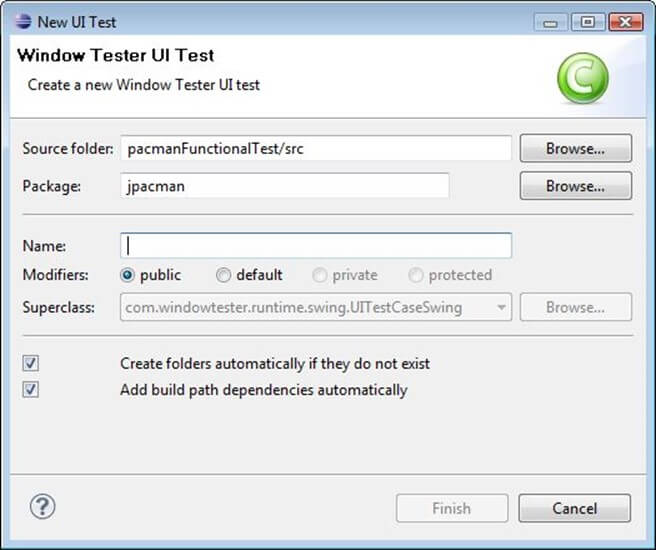
Following below is the example of the Test cases, which consists of UI and Usability test scenarios. If you are new to writing them, see how to write test cases first.
Test case 01 – Verify that the text box with the label “Source Folder” is aligned properly.
Test case 02 – Verify that the text box with the label “Package” is aligned properly.
Test case 03 – Verify that label with the name “Browse” is a button which is located at the end of TextBox with the name “Source Folder.”
Test case 04 – Verify that label with the name “Browse” is a button which is located at the end of TextBox with the name “Package.”
Test case 05 – Verify that the text box with the label “Name” is aligned properly.
Test case 06 – Verify that the label “Modifiers” consists of 4 radio buttons with the name public, default, private, protected.
Test case 07 – Verify that the label “Modifiers” consists of 4 radio buttons which are aligned properly in a row.
Test case 08 – Verify that the label “Superclass” under the label “Modifiers” consists of a dropdown which must be properly aligned.
Test case 09 – Verify that the label “Superclass” consists of a button with the label “Browse” on it which must be properly aligned.
Test case 10 – Verify that clicking on any radio button the default mouse pointer must be changed to the hand mouse pointer.
Test case 11 – Verify that user must not be able to type in the dropdown of “Superclass.”
Test case 12 – Verify that there must be a proper error generated if something has been mistakenly chosen.
Test case 13 – Verify that the error must be generated in the RED color wherever it is necessary.
Test case 14 – Verify that proper labels must be used in the error messages.
Test case 15 – Verify that the single radio buttons must be selected by default every time.
Test case 16 – Verify that the TAB button must be work properly while jumping on another field next to previous.
Test case 17 – Verify that all the pages must contain the proper title.
Test case 18 – Verify that the page text must be properly aligned.
Test case 19 – Verify that after updating any field a proper confirmation message must be displayed.
Test case 20 – Verify that only 1 radio button must be selected and more than single checkboxes may be selected.
Challenges in GUI Testing
Writing those cases is straightforward; keeping them alive over several releases is not. In Software Engineering, the most common problem while doing Regression Testing is that the application GUI changes frequently. It is very difficult to test and identify whether it is an issue or enhancement. The problem manifests when you don’t have any documents regarding GUI changes.
⚠️ Warning: Scripts that locate elements by screen coordinates or by auto-generated IDs will fail on the next build. Treat a locator strategy as part of the design, not an afterthought.
GUI Testing Tools
The right tooling absorbs much of that churn. Following is a list of popular GUI Testing Tools :
- Selenium
- QTP
- Cucumber
- SilkTest
- TestComplete
- Squish GUI Tester
Click here to learn Selenium, QTP & Cucumber.
Following are open source tools available to conduct automated UI Test.
| Product | Licensed Under |
|---|---|
| AutoHotkey | GPL |
| Selenium | Apache |
| Sikuli | MIT |
| Robot Framework | Apache |
| Water | BSD |
| Dojo Toolkit | BSD |
Sikuli is image based, useful when a control has no reliable locator; Selenium remains the default for web application testing.
